
Connect Xero
Send your customers, invoices, payments and credits to Xero automatically.
Xero is on Full Suite. You can connect Xero or QuickBooks, not both.
Connect it
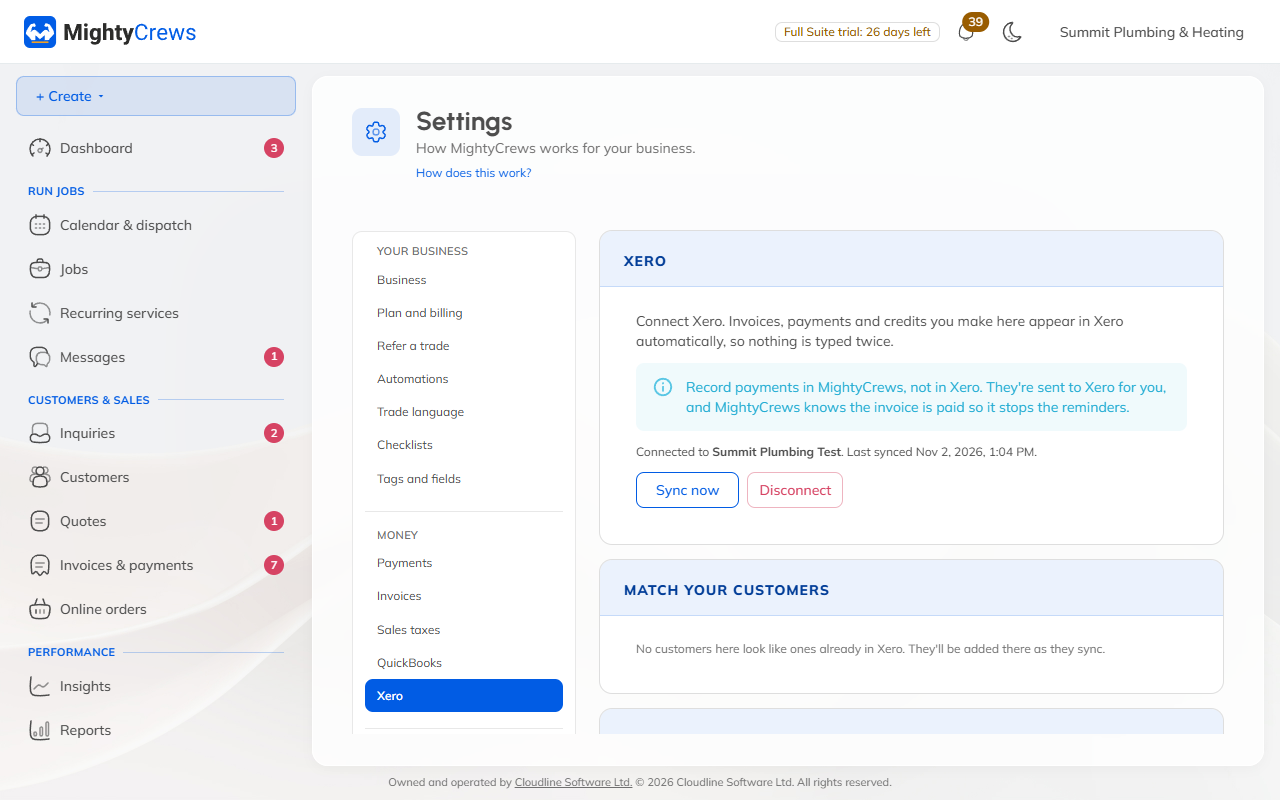
- Open Settings and choose Xero. (Admins only.)
- Click Connect Xero, sign in, and choose your organisation.
- Match your customers that are already in Xero.
- Pair your taxes with your Xero tax rates.
- Choose your accounts, including the bank account payments go to.
- Choose to send records from today, or from an earlier date.
- Click Save. Nothing is sent until you do.
What's sent
Every couple of minutes, MightyCrews sends new customers, issued invoices, payments, credits (as credit notes) and voided invoices. Sync now sends them straight away.
Record payments in MightyCrews, not in Xero. If nothing syncs for 60 days, Xero asks you to connect again.
If something doesn't sync
It's tried again, then listed under Didn't sync with Try again, and we email you once a day. Disconnect stops syncing and keeps everything already in Xero.
Still stuck? Open Help & support in the app and write to us, or email support@mightycrews.com.