
Add a customer
Add a person or a company with their phone, email and the address where the work happens.
Add a customer
- Open Customers and click New customer.
- Choose A person or A company, and type their name.
- Add their mobile phone and email, so you can send quotes, invoices and reminders.
- Add their billing address. If the work happens there too, leave The work happens at this address ticked. If not, untick it and add where the work happens.
- Click Add customer, or Add customer & create job to go straight to the work.
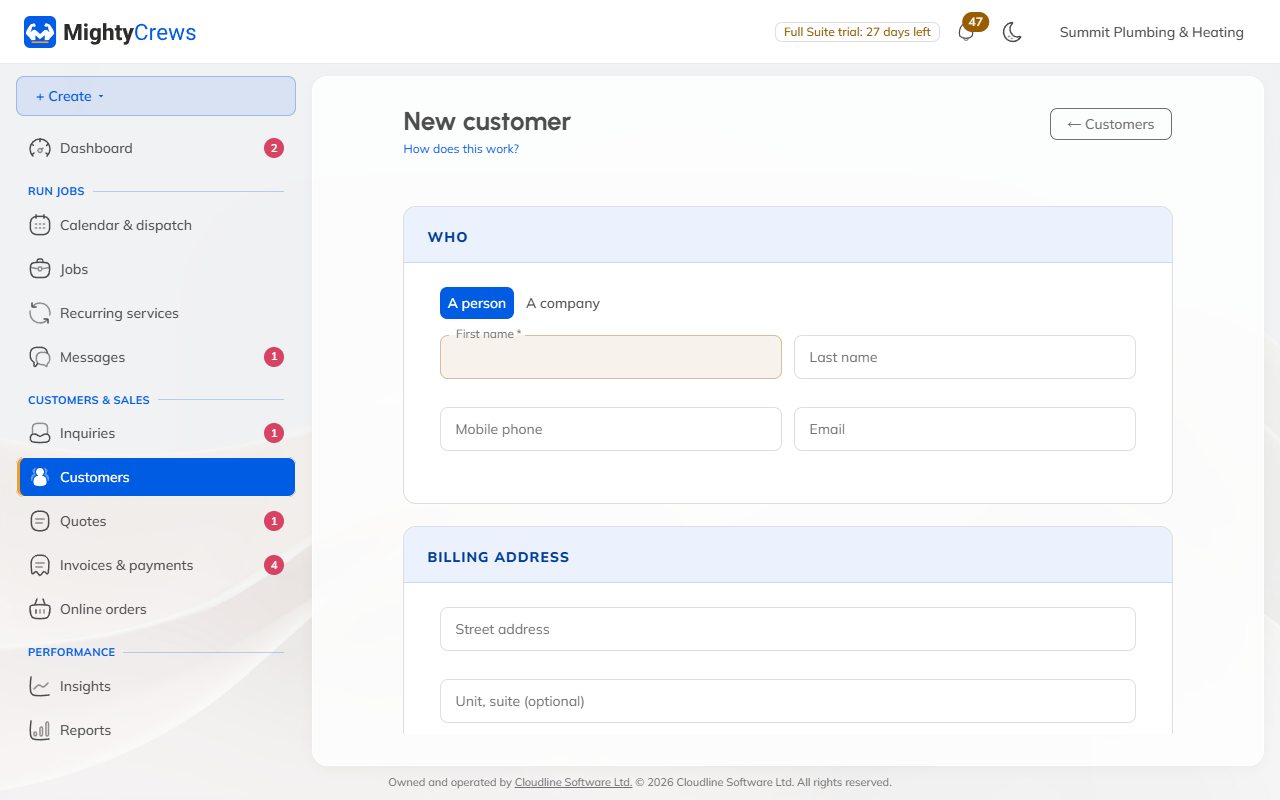
Under More (optional) you can add access instructions (like a gate code), how they found you, and their payment terms.
More than one location
A landlord or a property manager might have several places you work at.
- Open the customer.
- Click More actions, then Add a location.
- Add the address, any access instructions or gate code, and save.
Each location keeps its own equipment, jobs and history.
If a customer with the same name is already there, MightyCrews warns you so you don't add them twice. To join two that slipped through, open one of them and choose Merge in a duplicate from More actions.
Still stuck? Open Help & support in the app and write to us, or email support@mightycrews.com.