
Change many prices at once
Raise or lower prices by a percent or an amount, or update your price book from a spreadsheet.
Raise or lower prices
- Open Pricebook. Tick the items to change, or tick none to change every item showing.
- Click Change prices.
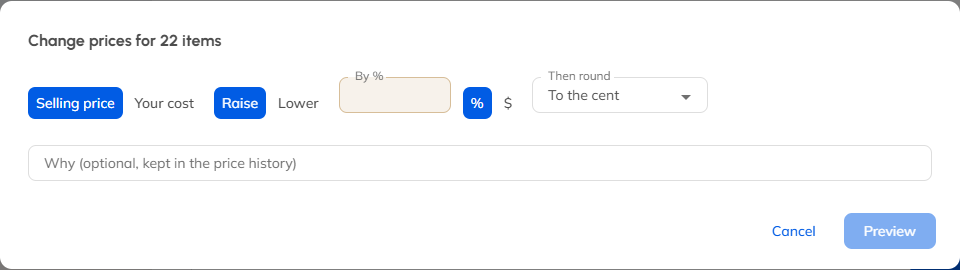
- Choose the selling price or your cost, raise or lower, and by a percent or a dollar amount.
- Choose how to round, like to the nearest dollar or to end in .99.
- Click Preview to check the old and new prices, then Apply.
Quotes and invoices you've already made keep their prices. Every change is kept in each item's Price history.
Update from a spreadsheet
- In Pricebook, click ⋯, then Export to a spreadsheet to get your price book as a CSV file.
- Change prices in the spreadsheet, or add new rows.
- Click ⋯, then Update from a spreadsheet, and choose your file.
- Check what's new and what's changed, and click Import.
Rows are matched by Code, or by name when there's no code. Columns you leave out aren't changed.
Still stuck? Open Help & support in the app and write to us, or email support@mightycrews.com.