
Put MightyCrews on your phone's home screen
Add MightyCrews to your home screen so it opens like an app, and turn on notifications.
There's nothing to download from an app store. MightyCrews installs straight from your phone's browser, opens like any other app, and keeps today's visits for when there's no signal.
iPhone
- Open MightyCrews in Safari (not Chrome) and sign in.
- Tap Share (the square with the arrow).
- Tap Add to Home Screen, then Add.
Android
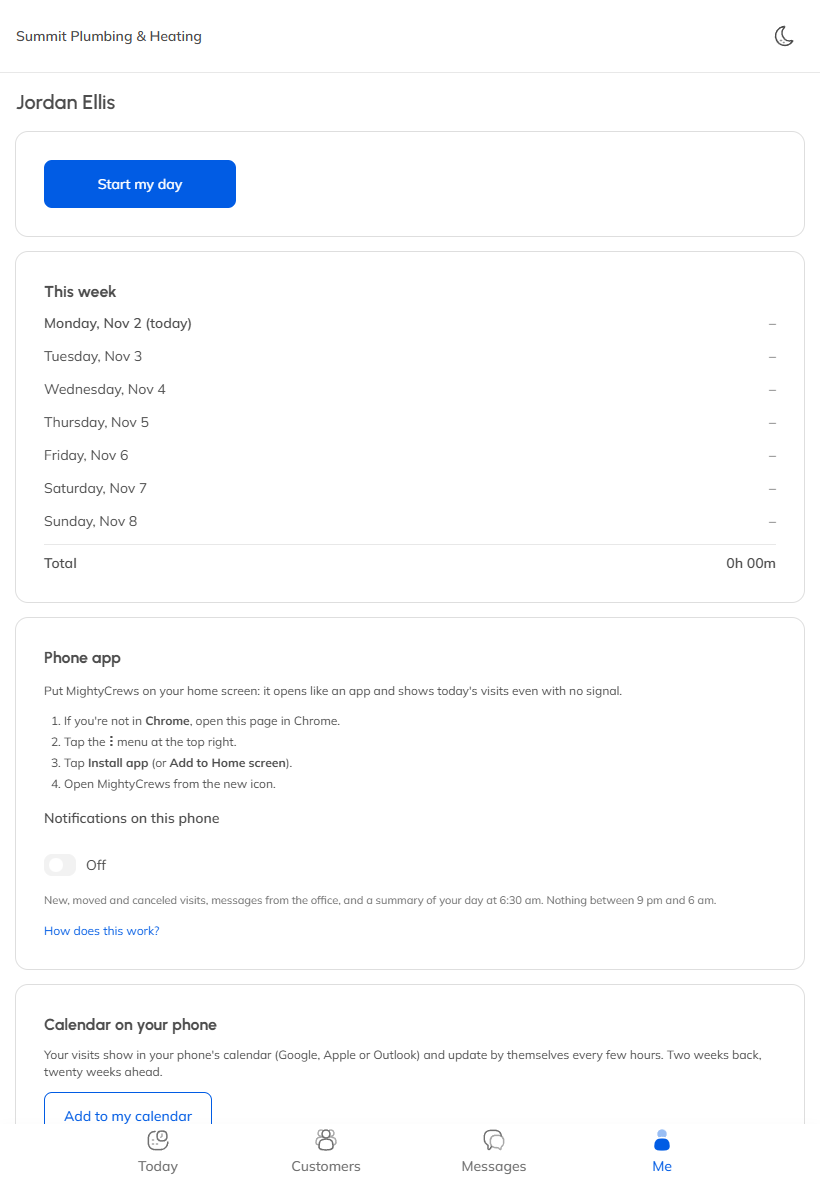
- Open MightyCrews in Chrome and sign in.
- Tap Install the app when MightyCrews offers it. Or tap the ⋮ menu, then Install app (or Add to Home screen).
Turn on notifications
- Open Me.
- Turn on Notifications on this phone, and allow them when the phone asks.
- Tap Send a test to check.
You'll hear about new, moved and cancelled visits, messages from the office, and a summary of your day at 6:30 am. Nothing comes between 9 pm and 6 am.
On an iPhone, notifications only work once MightyCrews is on the home screen.
For the owner
On Team & permissions, click Show how under Get your crew on their phones for a QR code your crew can scan.
Still stuck? Open Help & support in the app and write to us, or email support@mightycrews.com.