
Write a quote with Good, Better and Best
Build a quote with up to three options and optional add-ons, then email it for the customer to approve online.
Customers like a choice, and options often lead them to pick the better job. MightyCrews makes it quick.
Write the quote
- Open Quotes and click New quote.
- Pick the customer and the address, and say what the work is.
- Add the lines: type, or pick from your price book. Set the quantity and price, and the tax.
- Click Save quote.
Add Good, Better and Best
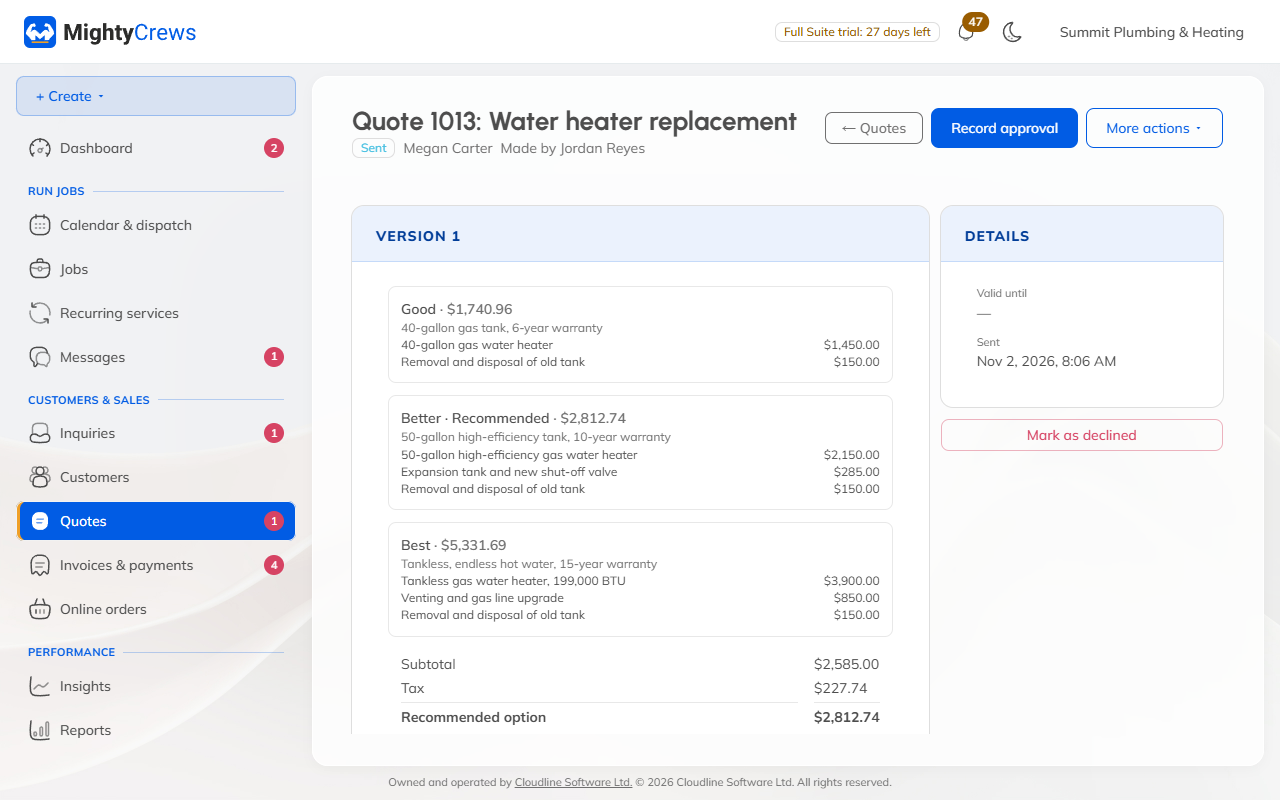
- Click Offer another option (copy of this). Your first option becomes Good and a copy called Better appears.
- Change the lines and prices in Better.
- Do it once more for Best, if you like (up to 3 options).
- Tick Recommended on the one you'd suggest. It's shown first and picked already.
Optional add-ons
On any line, tick Optional add-on (the customer ticks it). The customer decides whether to add it. Tick Start it ticked to have it added unless they take it off.
Deposit, photos and terms
- Under Deposit, ask for a percentage or a fixed amount, paid by card when they approve.
- Valid until is 30 days from today. Change it if you need to.
- On the saved quote, click Add photos to show the customer what you saw.
Send it
Click Send, check the email, and click Send. The customer gets a View and approve button.
Changed a quote after sending it? MightyCrews keeps the new version, so send it again. Once a quote is approved, use a change order for anything extra.
Still stuck? Open Help & support in the app and write to us, or email support@mightycrews.com.