
Online booking
Let customers book a time from your website or their account, and confirm it in one click.
Choose what can be booked
- Open Pricebook and click a service.
- Tick Book online.
- Choose Book a time (a known job) or Request a visit (to look and price), and how long it takes.
- Tick Book straight in, without confirming it first if you don't need to check these.
Open it
- Open Settings and choose Online booking.
- Click Open online booking.
- Choose your arrival windows, how many days ahead customers can book, any closed dates, and your service area (postal codes or ZIPs).
- Click Save.
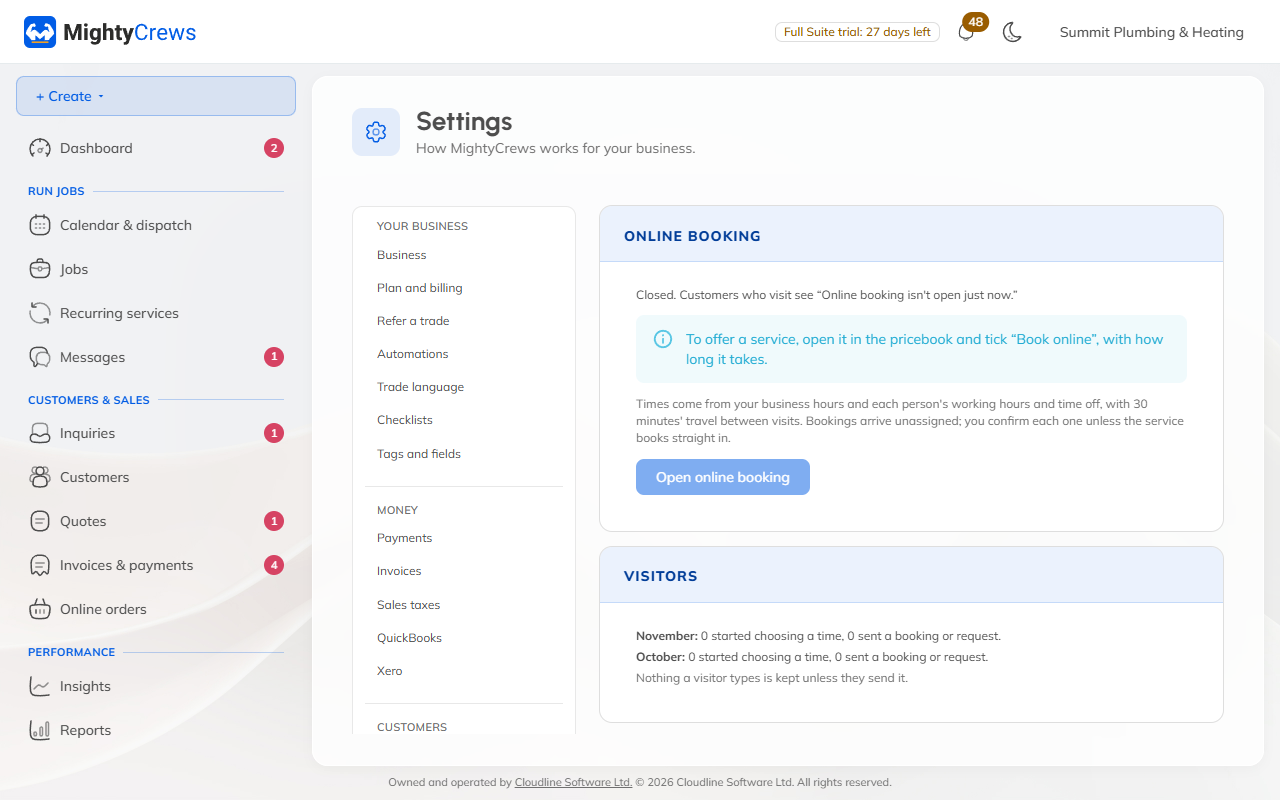
Times come from your business hours and each person's working hours, with time to travel between visits.
Where customers book
From your booking page, a Book online button on your own website (copy the code from Settings), your online store, your MightyCrews website, and Book a visit in their account.
Answer a booking
A booking lands in Needs a reply on your dashboard, and on the calendar. On the job, choose:
- Confirm: pick who's going. The customer gets a confirmation and a reminder the day before.
- Suggest another time: they can accept it with one tap.
- Decline: with a short reason for the customer.
Online booking is on Full Suite.
Still stuck? Open Help & support in the app and write to us, or email support@mightycrews.com.