
Credits and refunds
Give a customer credit on their account, use it on an invoice, or refund a payment.
Give credit
Credit is money on the customer's account for later. No money goes back to them.
- Open the customer, and under Invoices and payments, click Give credit.
- Type the amount and what it's for.
- Keep it on their account, or use it on one of their open invoices.
- Click Give credit.
Use credit on an invoice
When a customer has credit, their invoice shows it under Payments. Click Use credit. It's never used on its own.
Refund a payment
- Find the payment on the invoice, or on the customer's page, and click Refund.
- Type the amount and why.
- Choose whether it comes off what they owe, or they still owe it.
- Click Refund.
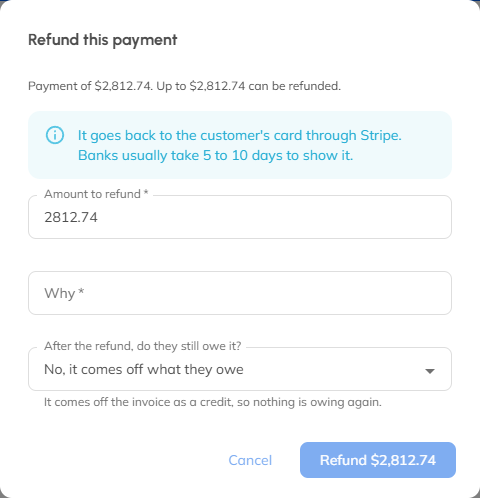
Card payments go back to the card; banks usually take 5 to 10 days to show it. For cash, cheques or transfers, say how you gave the money back.
Voiding a paid invoice
When you void an invoice that's been paid, choose to refund it, or keep it as credit for the customer.
Credits, refunds and voids need the Void invoices, refunds and credits switch for office staff (it's on unless you turn it off).
Still stuck? Open Help & support in the app and write to us, or email support@mightycrews.com.