
Send an invoice
Make the invoice from the job, check it, and email it with a link to pay.
From a job
- Open the job and click Complete & invoice. The job is completed and its invoice is drafted, with everything from the job.
- Check the draft. Use More actions to add a line or a dispatch fee.
- Click Issue and send, check the email, and click Send.
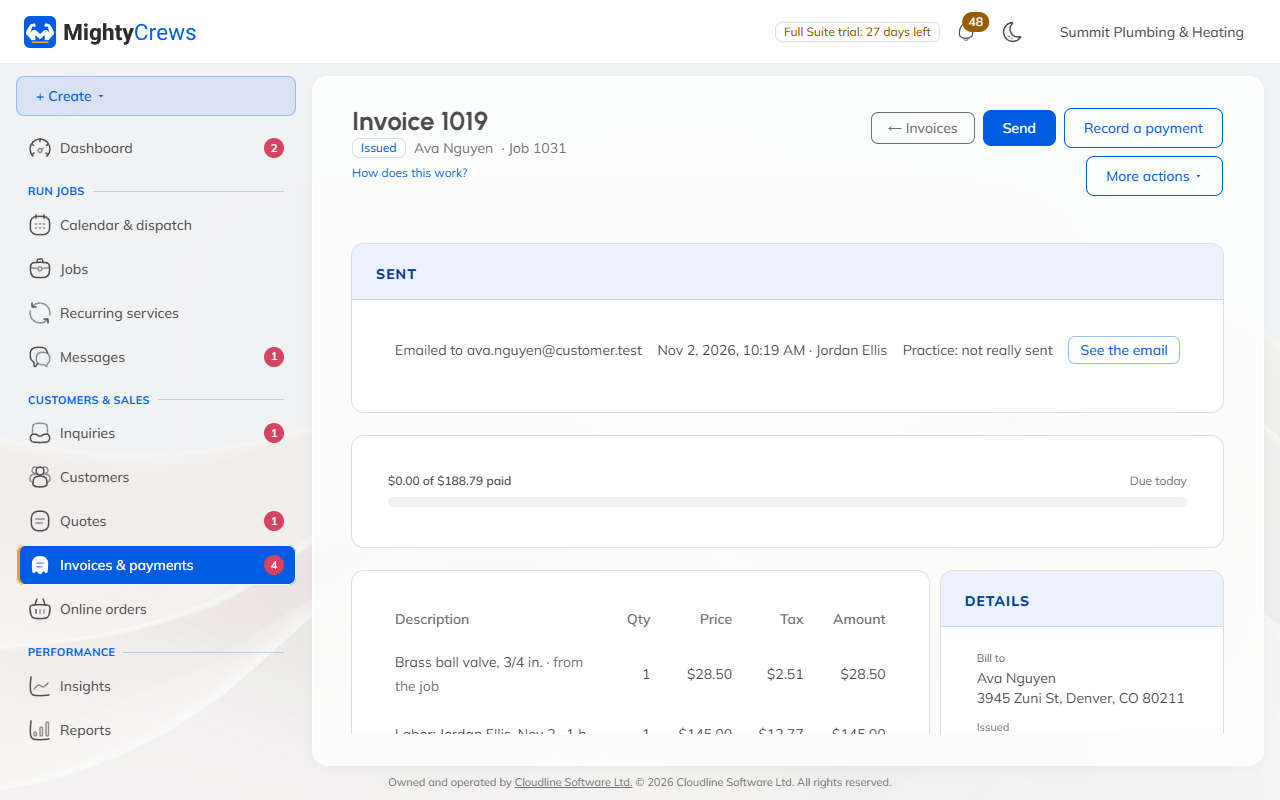
Your customer gets an email with a View and pay button. Your crew can also send it on site: see Send the invoice on site.
Several at once
Open Invoices & payments and click Invoice finished jobs. Tick the jobs, then choose to make drafts to check first, or to issue and email them all now.
When invoices are due
Set your usual terms in Settings, under Invoices: on receipt, or 7, 15 or 30 days. A customer can have their own terms on their card.
The PDF
Download PDF is under More actions on the invoice. To attach a PDF to every invoice email, open Settings, then Emails.
Once an invoice is issued, its number is fixed. To correct one, void it from More actions and make a new one.
Still stuck? Open Help & support in the app and write to us, or email support@mightycrews.com.