
Invoice reminders and late fees
Remind customers about unpaid invoices automatically, and add late fees if you choose.
Automatic reminders
Reminders are on unless you turn them off, in Settings, under Emails.
- 3 days before the due date (when the invoice gives at least 7 days)
- The day after it's due
- Then once a week, up to 3 reminders
They stop as soon as the invoice is paid. To stop them for one invoice, click Stop reminders for this invoice. To stop them for a customer, tick No reminder emails on their card.
Late fees
- Open Settings and choose Invoices.
- Under Late fees, turn on Add late fees to unpaid invoices.
- Choose a percentage or a fixed amount.
- Choose how many days after the due date: 7, 14, 30, 60 or 90.
- Tick Charge again every 30 days until paid if you want it repeated, up to 3 times.
- Click Save late fees.
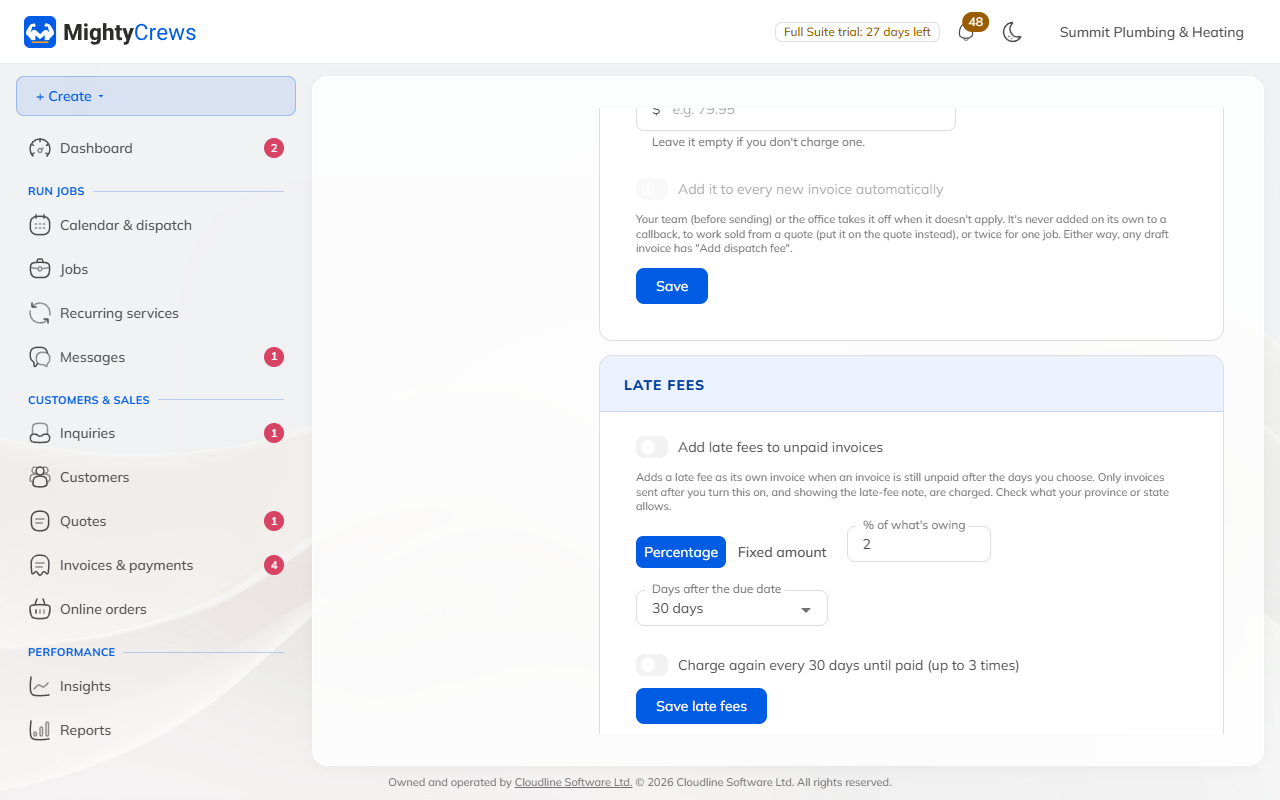
A late fee is its own small invoice, emailed to the customer. A note about late fees is printed on your invoices, and only invoices issued after you turn them on are charged. To spare a customer, tick No late fees for this customer on their card.
Automatic reminders are on Full Suite. Late fees are on every plan.
Still stuck? Open Help & support in the app and write to us, or email support@mightycrews.com.