
Get paid online by card
Turn on card payments once, and customers pay invoices from their phone by card, Apple Pay or Google Pay.
Turn on card payments
- Open Settings and the Payments tab. (Admins only.)
- Click Accept card payments.
- Stripe asks for your business and bank details. It takes about 10 minutes.
When you're done, MightyCrews shows Card payments are on. If Stripe still needs something, click Finish with Stripe.
What your customer does
- They tap View and pay in the invoice email.
- They can add a tip, if you've turned tips on.
- They tap Pay by card and pay by card, Apple Pay or Google Pay.
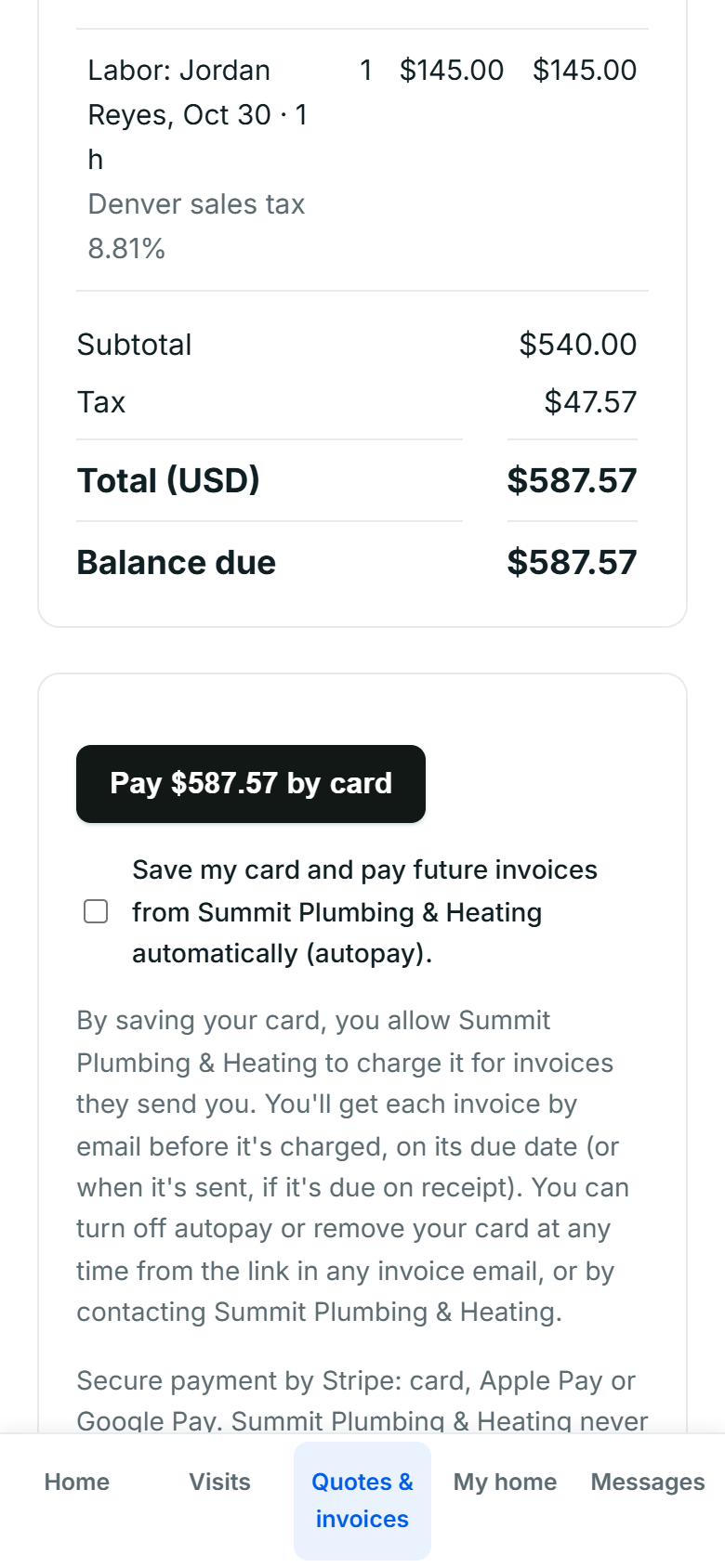
They can also save their card for automatic payments next time.
What you see
The invoice shows Paid in full, and the Payments tab shows exactly what the card fees were and what comes to you. Stripe sends the money to your bank on its usual schedule.
What it costs
- Stripe's fee: 2.9% + 30¢ per payment.
- MightyCrews: 0.5%, never more than $99 a month.
- Your customer pays the invoice amount, with nothing added. There's no MightyCrews fee on tips.
Card payments work on every plan, including Free.
Still stuck? Open Help & support in the app and write to us, or email support@mightycrews.com.