
Bring your customers over
Import your customers and price book from a spreadsheet, or send us your Jobber or Housecall Pro files and we'll set it all up for you, free.
You don't have to type your customers in again. Bring them over from a spreadsheet in a few minutes.
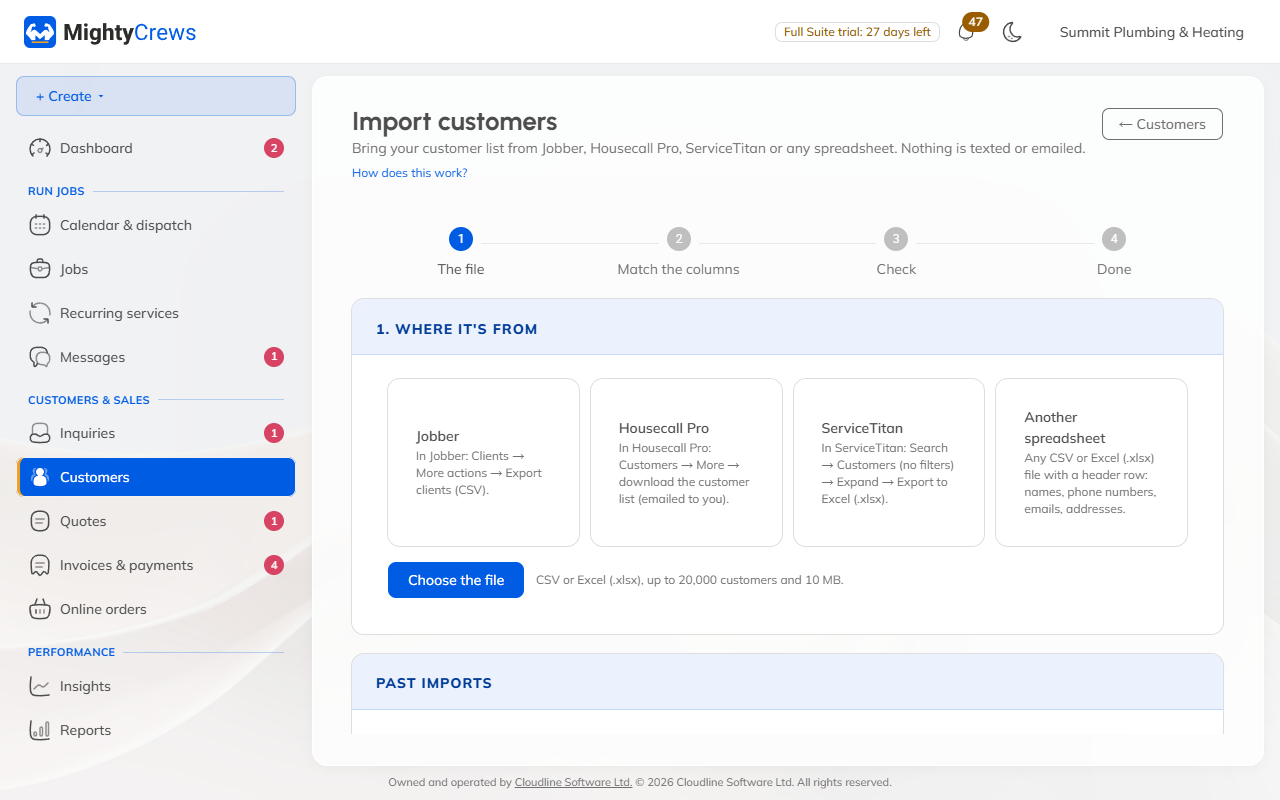
Import your customers
- Open Customers and click Import.
- Choose where your list is from: Jobber, Housecall Pro, ServiceTitan or another spreadsheet.
- Click Choose the file and pick your CSV or Excel file (up to 20,000 customers).
- Check that each column matches the right box, then click Check the import.
- Click Import to bring them in.
Nobody is texted or emailed when you import. If a customer is already in MightyCrews, the import adds what's missing and never overwrites their details. Changed your mind? Undo works for 7 days.
Import your price book
- Open Pricebook.
- Click More, then Update from a spreadsheet.
- Click Choose a CSV file, check the list, and click Import.
Coming from Jobber or Housecall Pro?
Click Switch to MightyCrews on your dashboard (or in Settings), upload your exports (customers, price list, unpaid invoices, upcoming visits and past jobs), and click Send my files. We'll set it all up for you within 1 business day, free.
Imported invoices aren't emailed or charged to your customers. They're there so you can keep collecting what you're owed.
Still stuck? Open Help & support in the app and write to us, or email support@mightycrews.com.