
Set up sales tax
Add the taxes you charge once, and MightyCrews puts the right tax on every quote and invoice.
Add your taxes
- Open Settings and choose Sales taxes.
- Click Add a tax.
- Type the name as it should appear on invoices, and the rate.
- Leave Use on new quotes and invoices ticked, and click Add tax.
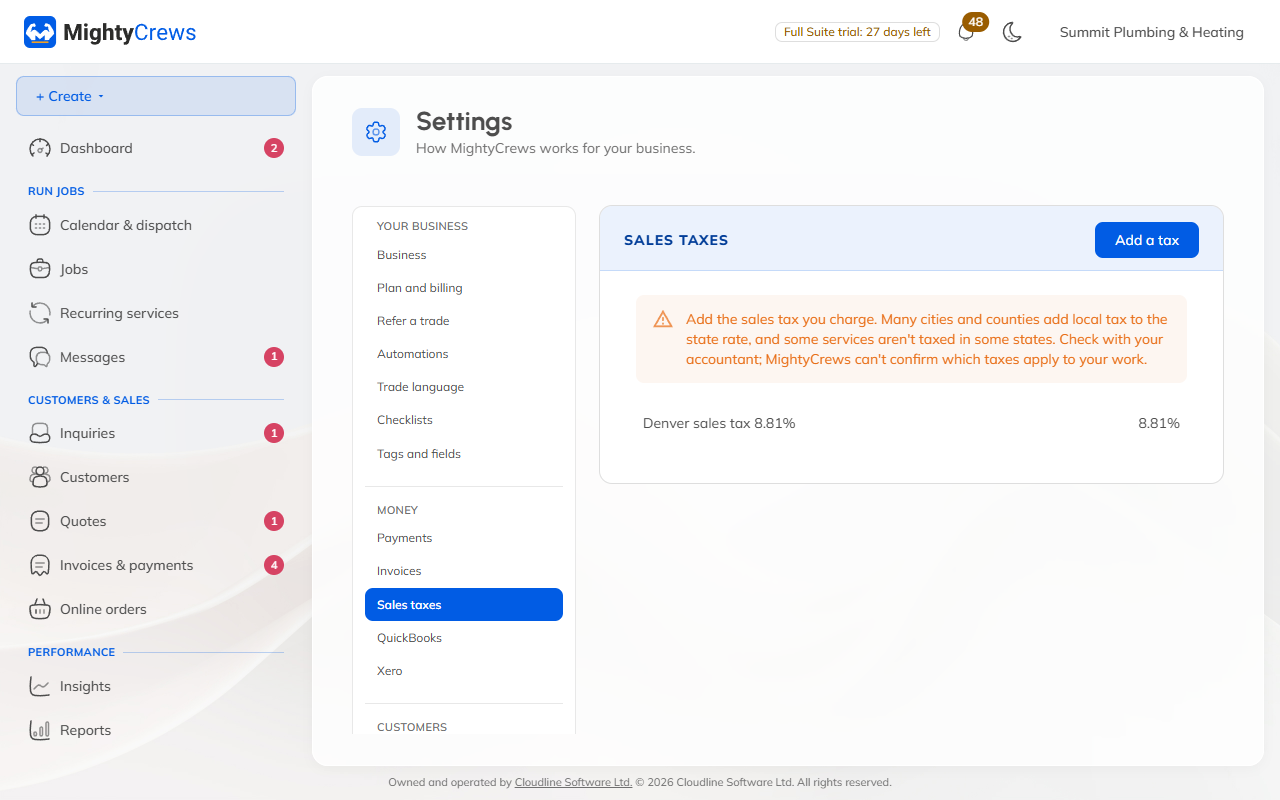
The setup guide asks for this too, so you may have done it already.
In Canada
Your province's taxes are filled in for you, like GST 5% in Alberta or HST 13% in Ontario. In BC, Saskatchewan, Manitoba and Quebec you get both the combined tax and GST 5% only, and invoices show each tax on its own line.
Add your GST/HST number (and PST, RST or QST number) in Settings, under Business.
In the US
Add your own rate, like "Denver sales tax 8.81%". Your sales tax number goes in Settings, under Business.
Each line has its own tax
On a quote or invoice, every line has a Tax box, so you can charge tax on parts and not on labour, or the other way round. Items in your price book keep their own tax.
Don't charge sales tax?
Choose I don't charge sales tax (or, in Canada, I'm not registered for GST/HST yet) in the setup guide or on your dashboard. New lines then carry no tax, and the tax line is left off your invoices.
Changing a rate only affects new quotes and invoices. A tax you no longer use can be unticked, but not deleted, so old invoices stay correct.
Still stuck? Open Help & support in the app and write to us, or email support@mightycrews.com.