
Choose how customers pay you
Take cards online, and list cash, cheques, e-Transfer, Zelle or bank transfer on your invoices.
Cards, online
Turn on card payments once and every invoice gets a Pay by card button. See Get paid online by card.
Once cards are on, two more choices appear in Settings, under Payments:
- Tips: customers can add 10%, 15%, 20% or their own amount. There's no MightyCrews fee on tips.
- Bank payments: customers can pay from their bank account (ACH in the US, pre-authorized debit in Canada). It's cheaper than a card, and takes about 4 business days to clear.
Cash, cheques and transfers
- Open Settings and choose Invoices.
- Under Ways to pay, tick each way you accept: cash, e-Transfer (Canada) or Zelle (US), cheques, and bank transfer.
- Add the details your customer needs, like where to send an e-Transfer or who to make a cheque out to.
- Check the preview, and click Save.
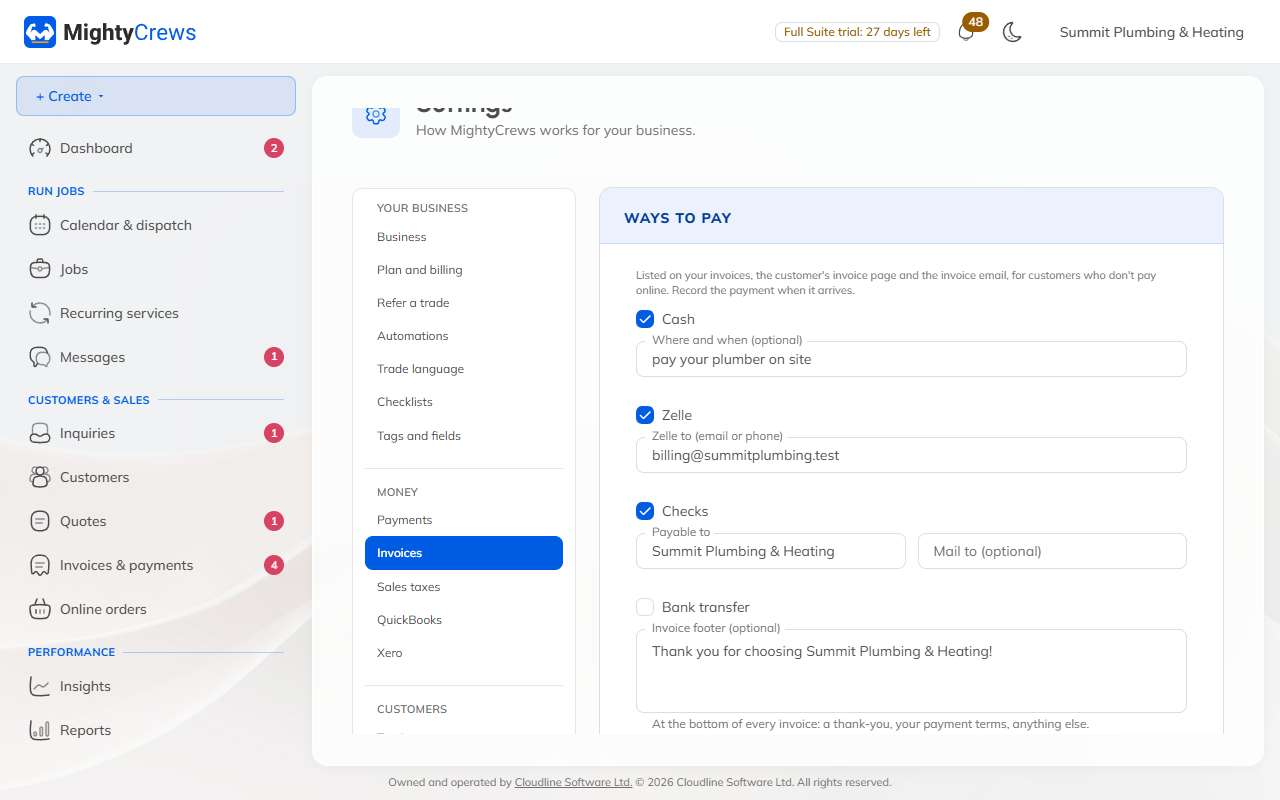
These show at the bottom of every invoice, online and on the PDF.
When a customer pays you by cash, cheque or transfer, mark it on the invoice: see Record a cash, check or bank payment.
Still stuck? Open Help & support in the app and write to us, or email support@mightycrews.com.