
Change orders
When the job changes, send the extra work for the customer to approve, and it goes on the invoice.
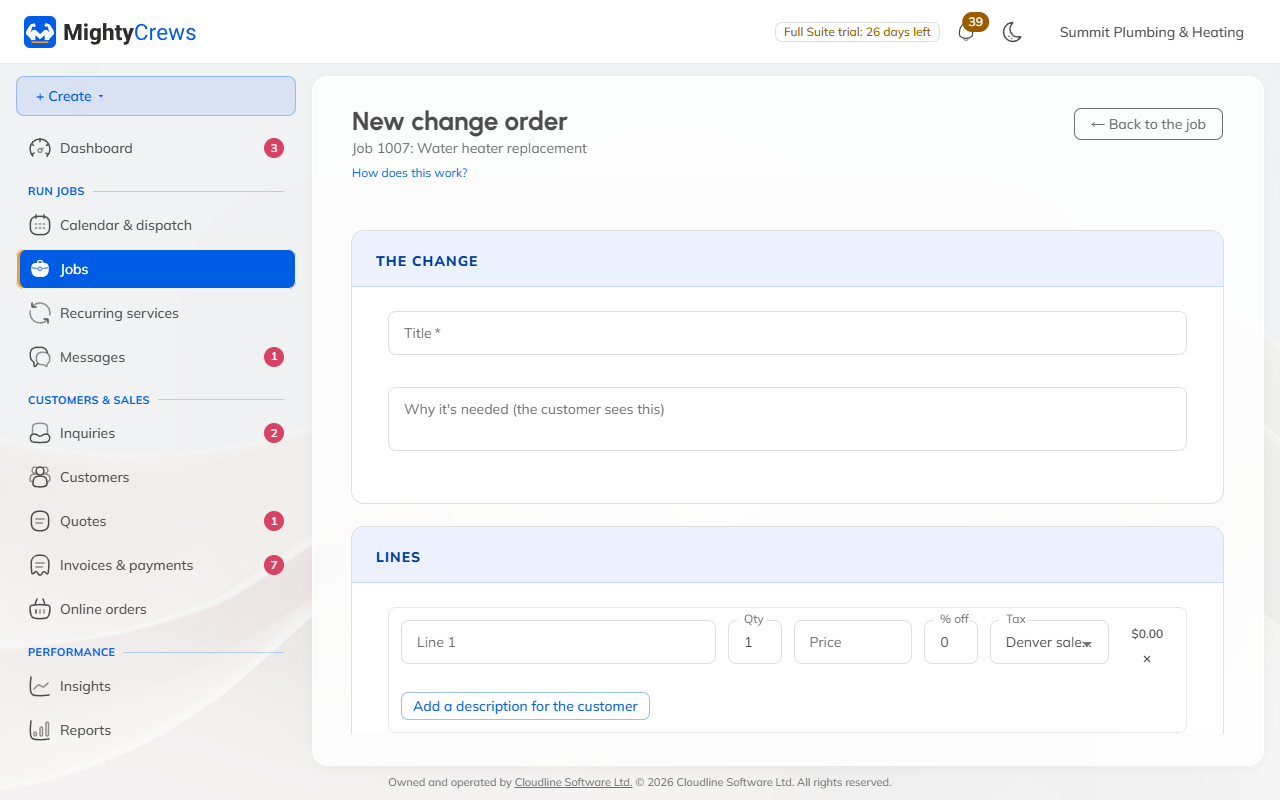
Make a change order
- Open the job, click More actions, then Change order.
- Give it a title, and say why it's needed. The customer sees this.
- Add the lines, from your price book or typed in.
- Click Save change order.
Send it
Click Send. The customer sees the change, the job total before, and the new job total. They type their name and approve it, or decline it.
Approved on the spot? Your crew can click Record approval.
On the invoice
An approved change order is locked, and its lines go on the job's next invoice, as "Change order 1: …".
Changing a change order you've already sent makes it a draft again, so send it again.
Still stuck? Open Help & support in the app and write to us, or email support@mightycrews.com.