
Checklists
Give your crew a checklist for each visit, and see what was done.
Make a checklist
- Open Settings and choose Checklists.
- Click New checklist and give it a name.
- Type one item per line. A line ending in a colon (like "Kitchen:") starts a new room or section.
- Save it.
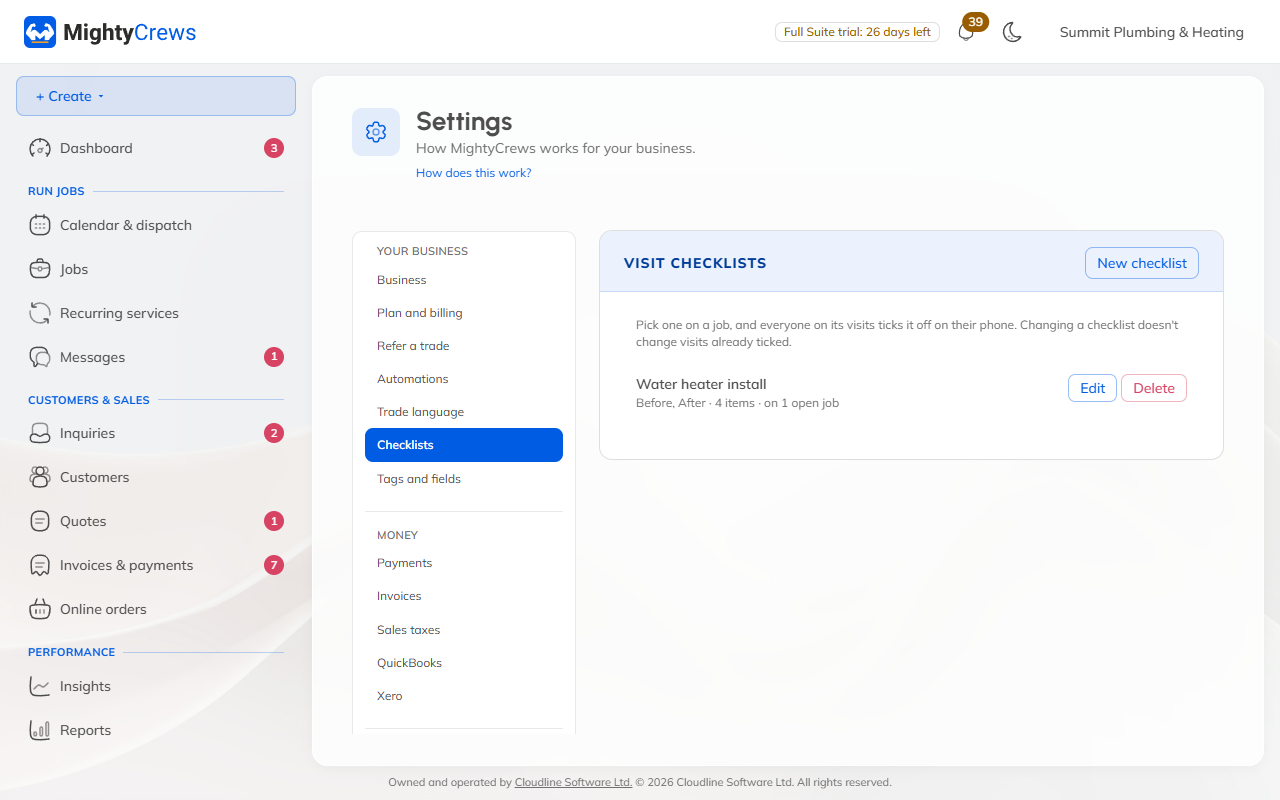
Some trades have starting checklists ready: click Add the starting checklists.
Use it on a job
On the job, next to Checklist, click Choose one and pick it. Every visit on the job gets the checklist.
What your crew sees
On the visit, the checklist shows by room, with big tick boxes. Each tick saves straight away, and they can add a note for the office.
If they complete the visit with items left, MightyCrews asks them to add a note or finish anyway. The job's activity shows how many were ticked.
Changing a checklist doesn't change visits that are already ticked.
Still stuck? Open Help & support in the app and write to us, or email support@mightycrews.com.